
A WhatsApp OTP API sends one-time passwords to your users on WhatsApp instead of SMS. Most people already have WhatsApp open, and messages arrive over the internet rather than the carrier network. Here is how WhatsApp OTPs work and what to get right before you switch.
OTPs use authentication templates
WhatsApp has a dedicated template category for codes: authentication. You can't write your own wording. The body is fixed preset text — “<code> is your verification code.” — and you choose from a few optional additions:
- Security disclaimer: “For your security, do not share this code.”
- Expiry warning: “This code expires in N minutes”, where N is between 1 and 90.
Fixed wording is what keeps authentication templates fast to approve and cheaper than marketing messages.
Copy code, one-tap, and zero-tap buttons
Authentication templates carry one button type that controls how the user enters the code:
- Copy code — the user taps to copy the code, then pastes it into your app. Works everywhere with no app changes.
- One-tap autofill — on Android, tapping the button opens your app and fills the code. It needs a small amount of Android code to receive the code.
- Zero-tap — on Android, your app receives the code in the background, so the user doesn't tap anything. It needs Android integration, and your business must accept Meta's zero-tap terms.
Start with copy code. Add one-tap autofill for Android users once the basic flow works.
Sending an OTP
Generate the code on your server, store a hash of it with an expiry, and send it through the approved authentication template. The same code fills the body placeholder and the copy-code button:
// Send an approved authentication template with a copy-code button
body: JSON.stringify({
  messaging_product: "whatsapp",
  to: "919876543210",
  type: "template",
  template: {
    name: "login_code", // your approved AUTHENTICATION template
    language: { code: "en" },
    components: [
      { type: "body", parameters: [{ type: "text", text: code }] },
      {
        type: "button",
        sub_type: "url",
        index: "0",
        parameters: [{ type: "text", text: code }],
      },
    ],
  },
})
The request goes to the same /messages endpoint as any other template. See the WhatsApp Business API developer guide for the full request and webhook setup.
OTP security checklist
- Generate codes with a cryptographically secure random generator, never
Math.random(). - Store only a hash of the code, and expire it quickly — 5 to 10 minutes is typical.
- Allow a few verification attempts, then invalidate the code.
- Rate-limit sends per phone number and per IP to stop OTP abuse and runaway costs.
- Never put the code in logs, analytics events, or URLs.
Keep an SMS fallback
Not every user has WhatsApp, and messages can fail. Watch the failed status in your webhook, and fall back to SMS — or let the user choose — when a WhatsApp OTP isn't delivered within a few seconds.
What a WhatsApp OTP costs
Meta charges authentication templates per delivered message, at a rate set per country. With notifySphere, Meta's rate is passed through at cost plus a ₹0.01 processing fee per authentication message. See pricing.
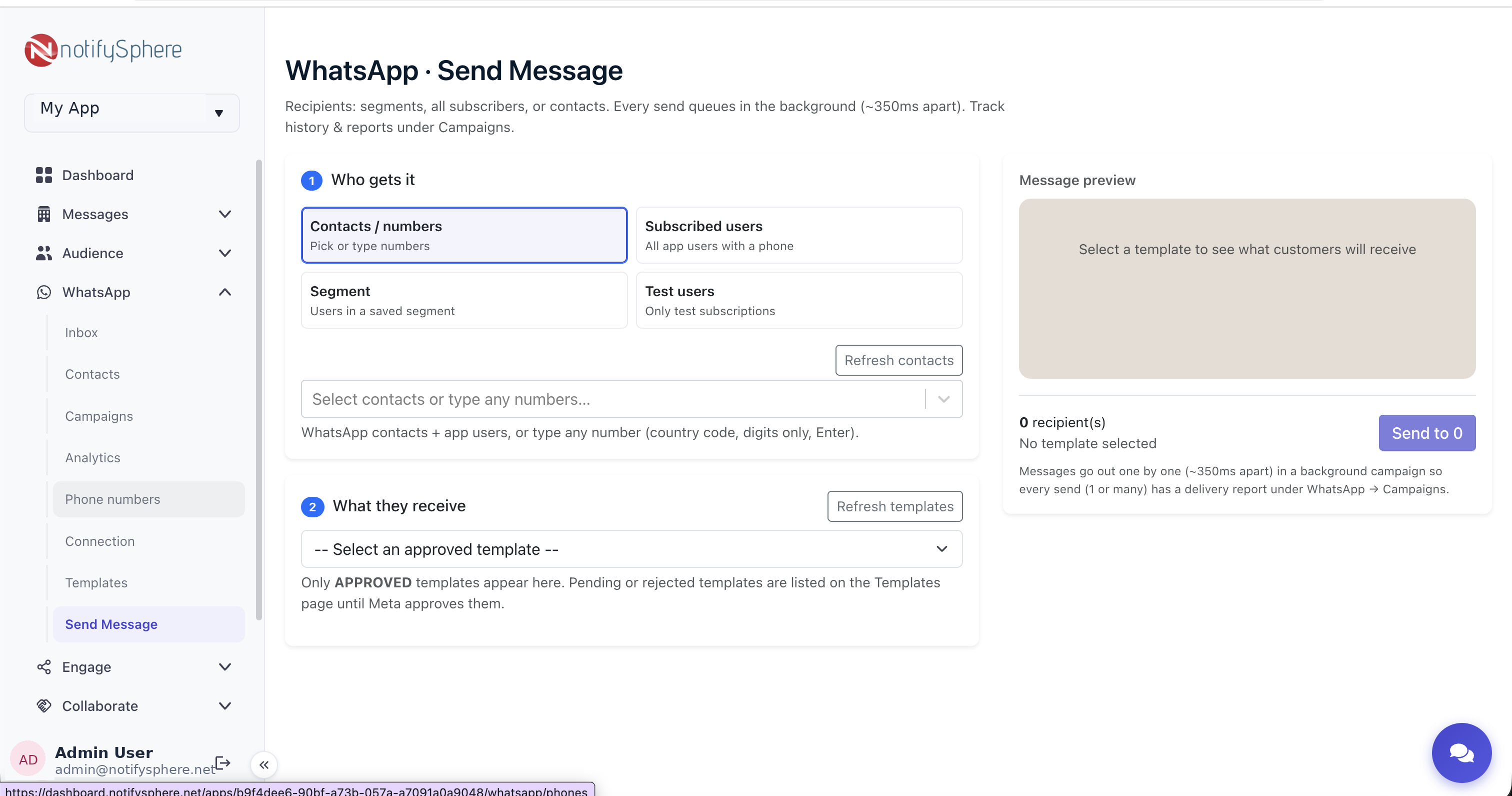
Sending WhatsApp OTPs with notifySphere
notifySphere connects to your WhatsApp Business Account, tracks your authentication template's approval status, and reports delivery and read receipts for every code you send — alongside your push notifications and app attribution in the same dashboard.