
The WhatsApp Business API lets your backend send and receive WhatsApp messages programmatically — order updates, OTPs, reminders, and support replies — instead of typing them in the WhatsApp Business app. This guide covers how it works end to end, so you can design your integration before writing code.
What is the WhatsApp Business API?
WhatsApp offers two business products. The WhatsApp Business app is a phone app for small businesses that reply by hand. The WhatsApp Business Platform — usually called the WhatsApp Business API — is for software: your systems send messages over HTTPS, and WhatsApp calls your server back with replies and delivery updates.
Meta hosts the API (the Cloud API), so there is no server for you to run. You can call it directly, or go through a provider that adds a dashboard, template management, analytics, and integrations on top.
How the API works
Every integration has the same building blocks:
- A Meta Business account that owns a WhatsApp Business Account (WABA).
- A phone number registered to that WABA. It can't be in active use on the regular WhatsApp or WhatsApp Business app at the same time.
- An access token your server uses to call the Graph API, and the number's phone number ID, which appears in the send URL.
- A webhook URL where WhatsApp posts incoming messages and status updates.
Sending is a single POST to https://graph.facebook.com/{version}/{phone-number-id}/messages. Receiving happens through your webhook.
Message templates
You can't start a conversation with free-form text. Any message your business sends first must use a template that Meta has reviewed and approved. Templates have placeholders, such as {{1}} for an order number, that you fill in at send time.
Every template belongs to a category, and the category decides what it's for and what it costs:
- Marketing — offers, announcements, re-engagement.
- Utility — updates about something the customer already did: order confirmations, shipping, payment receipts, appointment reminders.
- Authentication — one-time passwords and login codes, with fixed preset wording.
Pick the category honestly. Meta can re-categorize a template that doesn't match its content — a promotional message submitted as utility, for example.
The 24-hour customer service window
When a customer messages you, a 24-hour customer service window opens. Inside that window you can reply with free-form messages — text, images, documents, buttons — without a template. Once it closes, you need an approved template again to reach that customer.
Sending a template from Node.js
Here is a minimal call against Meta's Cloud API that sends an approved order_shipped template with two body parameters:
// Node.js 18+ (built-in fetch)
const GRAPH_VERSION = "v22.0"; // use the latest version listed in Meta's docs
const PHONE_NUMBER_ID = process.env.WA_PHONE_NUMBER_ID;
const ACCESS_TOKEN = process.env.WA_ACCESS_TOKEN;

async function sendOrderShipped(to, orderId, eta) {
  const res = await fetch(
    `https://graph.facebook.com/${GRAPH_VERSION}/${PHONE_NUMBER_ID}/messages`,
    {
      method: "POST",
      headers: {
        Authorization: `Bearer ${ACCESS_TOKEN}`,
        "Content-Type": "application/json",
      },
      body: JSON.stringify({
        messaging_product: "whatsapp",
        to, // recipient in international format, e.g. "919876543210"
        type: "template",
        template: {
          name: "order_shipped",
          language: { code: "en" },
          components: [
            {
              type: "body",
              parameters: [
                { type: "text", text: orderId },
                { type: "text", text: eta },
              ],
            },
          ],
        },
      }),
    }
  );
  if (!res.ok) throw new Error(`WhatsApp send failed: ${res.status}`);
  return res.json(); // contains the message id you'll see again in status webhooks
}
Store the message ID from the response. Every delivery update for this message refers back to it.
Webhooks: replies and delivery receipts
WhatsApp sends two kinds of events to your webhook. Payloads with a messages array are incoming messages from customers. Payloads with a statuses array are updates on messages you sent — sent, delivered, read, or failed, with error details when sending fails.
// Express webhook receiver (simplified)
app.post("/webhooks/whatsapp", express.json(), (req, res) => {
  for (const entry of req.body.entry ?? []) {
    for (const change of entry.changes ?? []) {
      const value = change.value;

      // Incoming customer messages
      for (const msg of value.messages ?? []) {
        console.log("Message from", msg.from, msg.type, msg.text?.body);
      }

      // Delivery updates for messages you sent: sent, delivered, read, failed
      for (const status of value.statuses ?? []) {
        console.log("Message", status.id, "is now", status.status);
      }
    }
  }
  res.sendStatus(200); // acknowledge quickly, process asynchronously
});
Acknowledge with a 200 quickly and do heavy work in a queue. Slow or failing endpoints get retried, which can produce duplicate events, so make your handler idempotent on the message ID.
Opt-in rules
You must have a customer's permission before messaging them on WhatsApp, and the opt-in should make clear they'll receive messages from your business on WhatsApp. Keep a record of when and how each customer opted in, and honor opt-out requests promptly. Messaging people who didn't ask for it leads to blocks and reports, which lower your quality rating and can limit how many people you can message.
How WhatsApp API pricing works
Meta charges per delivered template message. The rate depends on the template category and the recipient's country, and Meta publishes rate cards that it updates from time to time. Marketing templates cost the most; utility and authentication templates cost less. Which messages are free, and when, also changes with Meta's pricing updates — check the current rate card before you estimate.
Providers then add their own fee on top. On notifySphere, Meta's rate is passed through at cost and the processing fee per message is ₹0.04 for marketing, ₹0.02 for utility, ₹0.01 for authentication, ₹0.02 for service. See pricing for details.
Go-live checklist
- Business verified in Meta Business Manager and a phone number registered to your WABA.
- Templates approved for every business-initiated message you plan to send.
- Webhook deployed over HTTPS, verified, and idempotent.
- Opt-in captured and stored for every recipient, with a working opt-out.
- Failed statuses monitored, so broken templates or numbers surface quickly.
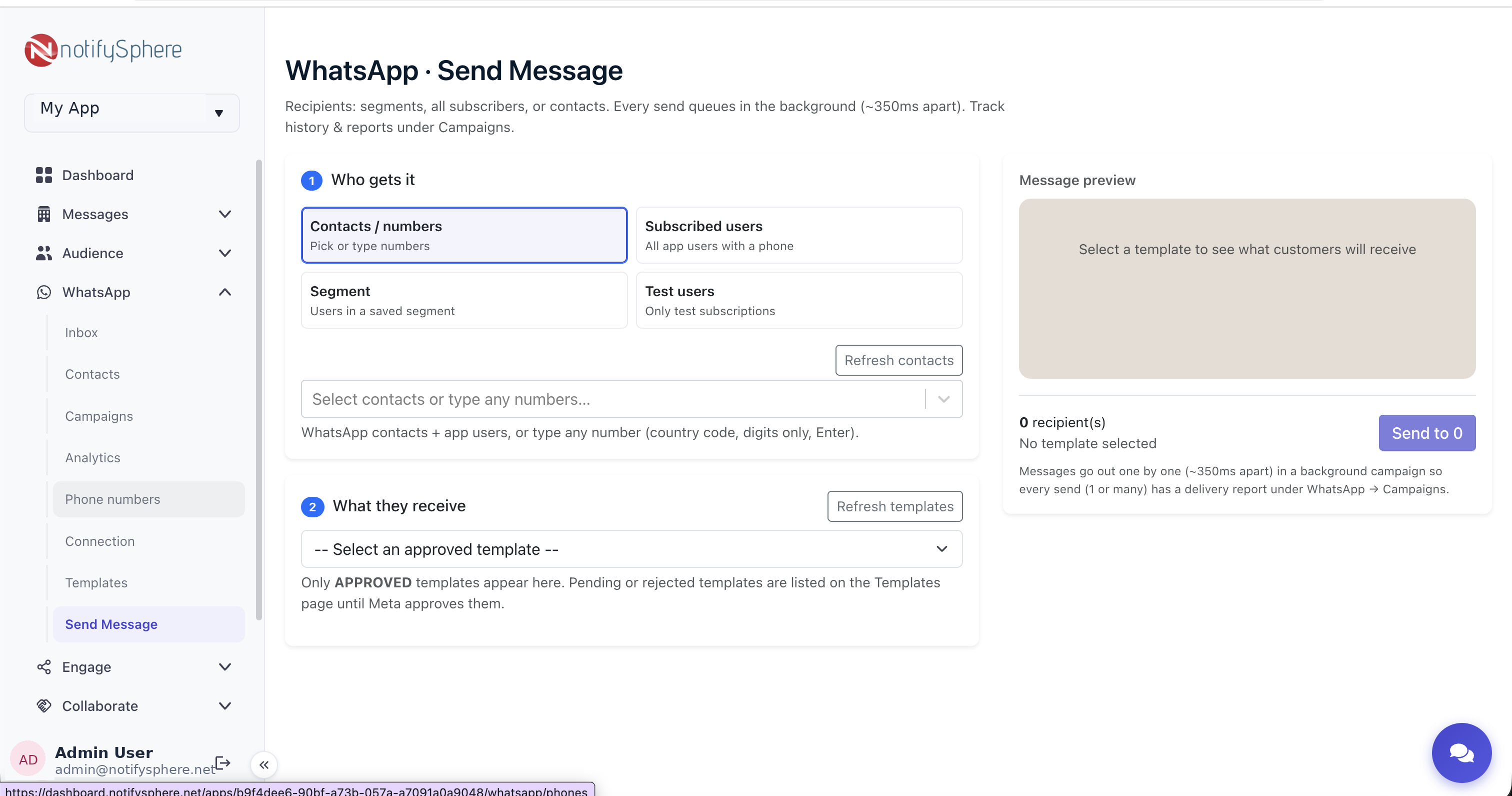
Using the WhatsApp Business API with notifySphere
notifySphere connects to your own WhatsApp Business Account and handles the operational layer: template submission and approval tracking, sending from the dashboard or your backend, delivery and read receipts, consent tracking, and routing customer replies into support tickets. The same account also runs your push notifications and app attribution, so a customer's WhatsApp, push, and support history live in one place.